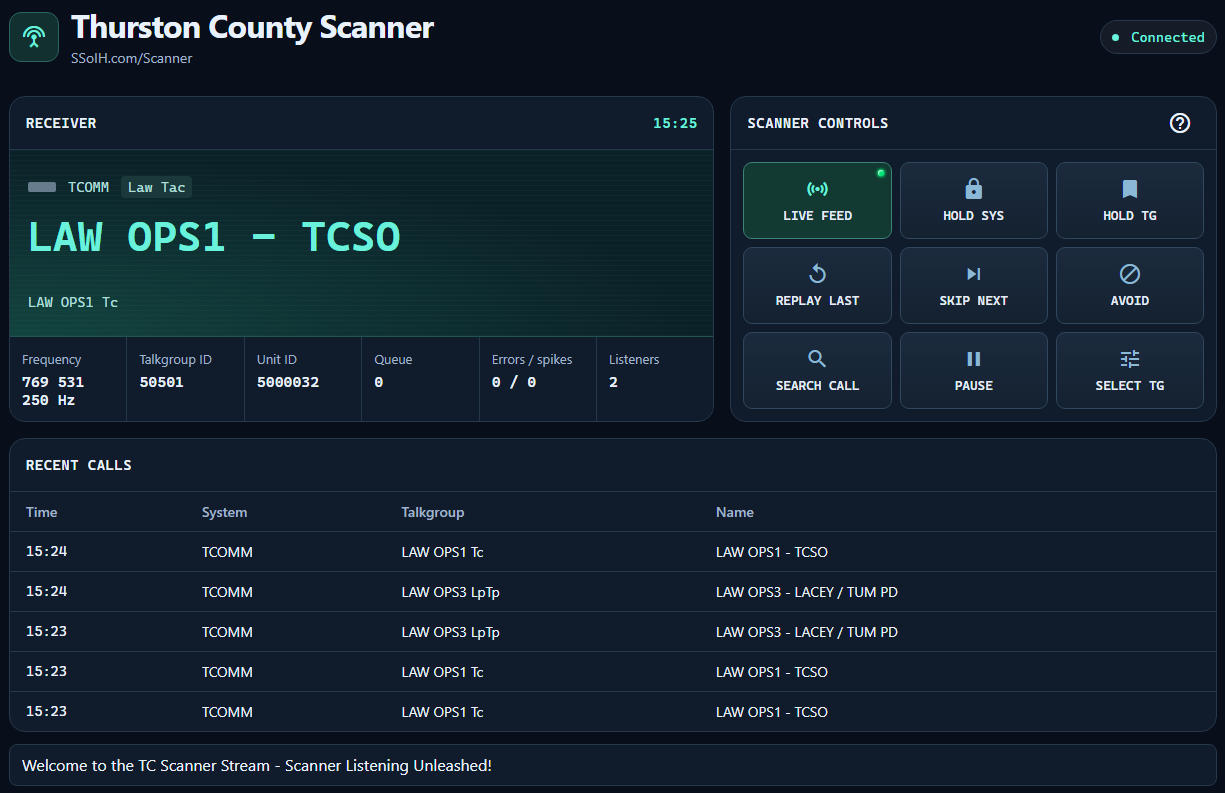
How to use the scanner
Talkgroups on the full scanner feed
Open the to see the TCOMM lineup. With full-feed access, open Select TG to see every talkgroup currently available to you.
Encrypted channels, such as SWAT, are unavailable on both the demo and full scanner feeds.
Start listening
- Open the scanner using the link below. If prompted, enter your demo or subscriber access code and press Unlock.
- Once the top-right status reads Connected and the code prompt has cleared, press Live Feed.
- When Live Feed lights up, the scanner will play matching broadcasts as they come in. If the channel is quiet, leave the feed on and wait for the next transmission.
Choose your talkgroups
Press Select TG to choose which channels you want to hear. Tap a talkgroup to switch it on or off. For example, you can enable Fire Dispatch and turn off channels you don’t want to monitor.
Advanced Monitoring reveals the Unidentified Talkgroups list. Your access code determines which talkgroups are available, and your choices are saved in your browser.
What the queue means
Queue shows how many transmissions are waiting to play. The scanner plays one recording at a time. If several calls come in while you’re listening, the later calls wait their turn.
A queue of 3 means three calls are waiting behind the one you’re hearing. A queue of 0 means no calls are waiting. A busy feed or a long pause can put playback behind current traffic. Skip Next moves past the current recording to the next one in line.
Search and replay past calls
- Press Search Call to open the archive.
- Use the filters below the results to choose a date and time, system, talkgroup, group, or tag. For example, select Fire Dispatch and set the time near the call you remember.
- Press the play button beside a result. Each row is one recorded transmission, so a conversation may span several rows. Use the page controls to see more results.
Search covers recordings still stored on the server and available to your access code. To return to live listening, close Search Call and select Live Feed if needed.
Other scanner buttons
- Hold Sys
- Listen to the current or most recent radio system only. Press again to release the hold.
- Hold TG
- Listen to the current or most recent talkgroup only. Press again to release the hold.
- Replay Last
- Restart the transmission you’re hearing or replay the most recent one.
- Skip Next
- Stop the current recording and move on to the next available call.
- Avoid
- Exclude the current or most recent talkgroup from live listening. Use Select TG to turn it back on.
- Pause
- Pause playback. New live calls can still enter the queue. Press again to resume.
Demo access and subscriptions
Take Thurston County Scanner Elite for a 7-day test drive. Pick the talkgroups you want to follow, hold on a channel when it gets busy, and replay a transmission you missed. You can also search past calls and download individual recordings available with your demo code. Request your 7-day demo code and see how the scanner fits the way you listen.